

Appearance Settings
Brand Name
The name shown in the chat header (e.g., “Sara | Your Shopping Assistant”)Primary Color
Choose your brand color using the color picker or enter a hex code (e.g.,#7C3AED for purple)
Agent Avatar
Upload an image or avatar for your agent that appears in the chat. This helps personalize the conversation experience.Widget Position
Choose where the chat button appears on your website:Right
Bottom-right corner (most common)
Left
Bottom-left corner
Center
Bottom center
Popular Questions
Add up to 3 quick-action buttons that appear in the chat widget to help customers start conversations quickly.Example Buttons
- “What’s new?”
- “Track my order”
- “Contact support”
Quick-action buttons increase engagement by making it easy for customers to start a conversation.
Live Preview
As you make changes, see exactly how your widget will look in the real-time preview on the right side of the screen.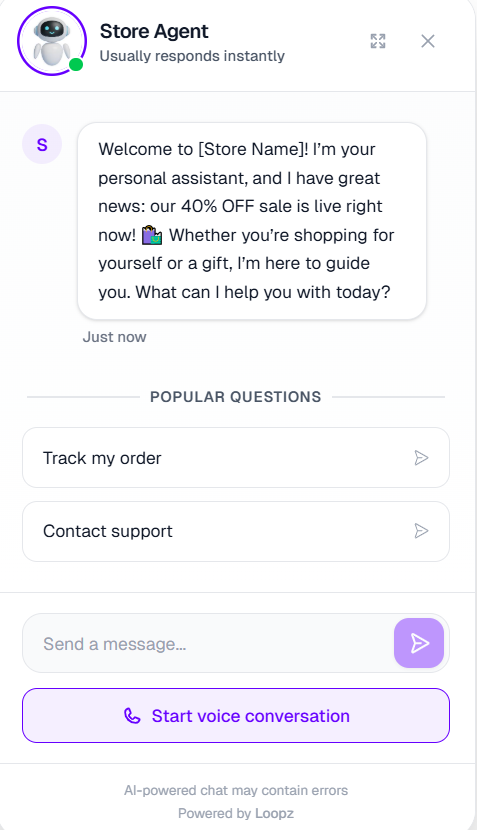
Always test your changes in the live preview before deploying!
Next Steps
Deploy Your Agent
Add your agent to your website
Connect Integrations
Link Calendly, Zid, WhatsApp, and more